
Apply Ripple to images and videos online
Create water-like ripple effects across your image or video. Add fluid motion and organic distortion — even to static visuals.
 Before
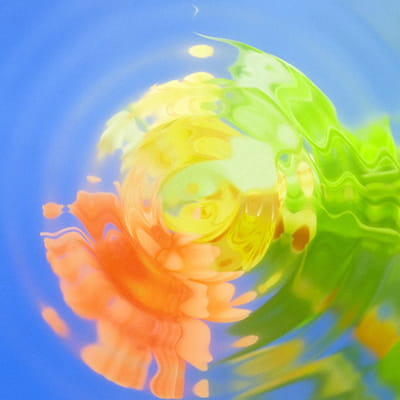 After
After
Ideas for using the effect
Liquid motion
Simulate water waves, drops, and surface ripples.
Bring photos to life
Add subtle motion to still images for dynamic visuals.
Background distortion
Create flowing, animated backgrounds for design and motion graphics.
Atmospheric effects
Mimic reflections, heat waves, or underwater movement.
Made with this effect
More inspiration on Instagram @effect_app


Use Ripple in Photoshop, Figma or on your desktop
One account, the same effect everywhere.
In Photoshop
Apply it to a layer in Photoshop 2022 and later, on macOS or Windows. The plugin renders on your own GPU and hands the result back as pixels on a new layer.
get the Photoshop plugin →In Figma
Run it on images and frames without leaving the canvas. The Figma plugin is this same editor, pointed at whatever you have selected.
get the Figma plugin →On desktop
Install the macOS or Windows app when you want a window of its own, with your account and your presets already there.
download the desktop app →Frequently Asked Questions
What does Ripple do?
Ripple distorts an image or video with wave-like motion, similar to water ripples.
Is the effect animated?
Yes. Ripple adds dynamic movement over time.
Can I control the wave strength?
Yes. You can adjust ripple intensity, frequency, and speed.
Does Ripple work on videos?
Absolutely. The effect runs in real time on both images and videos.
What effects work well with Ripple?
Ripple pairs beautifully with blur, color grading, noise, and glow effects.
How do I add a water ripple in Photoshop?
Ripple, Wave and ZigZag are decades-old dialogs judged from a small preview. The Photoshop plugin runs Ripple on the full-size layer with wave strength and scale visible as you set them.