
Apply Apple II to images and videos online
Turn photos and videos into Apple II Hi-Res graphics with real NTSC artifact color. Hi-Res, Double Hi-Res, and green-screen mono, with the fringes and color bleed of a composite monitor. Free, in the browser. Also known as: Apple 2 filter, HGR graphics, NTSC artifact color, Apple II hi-res mode
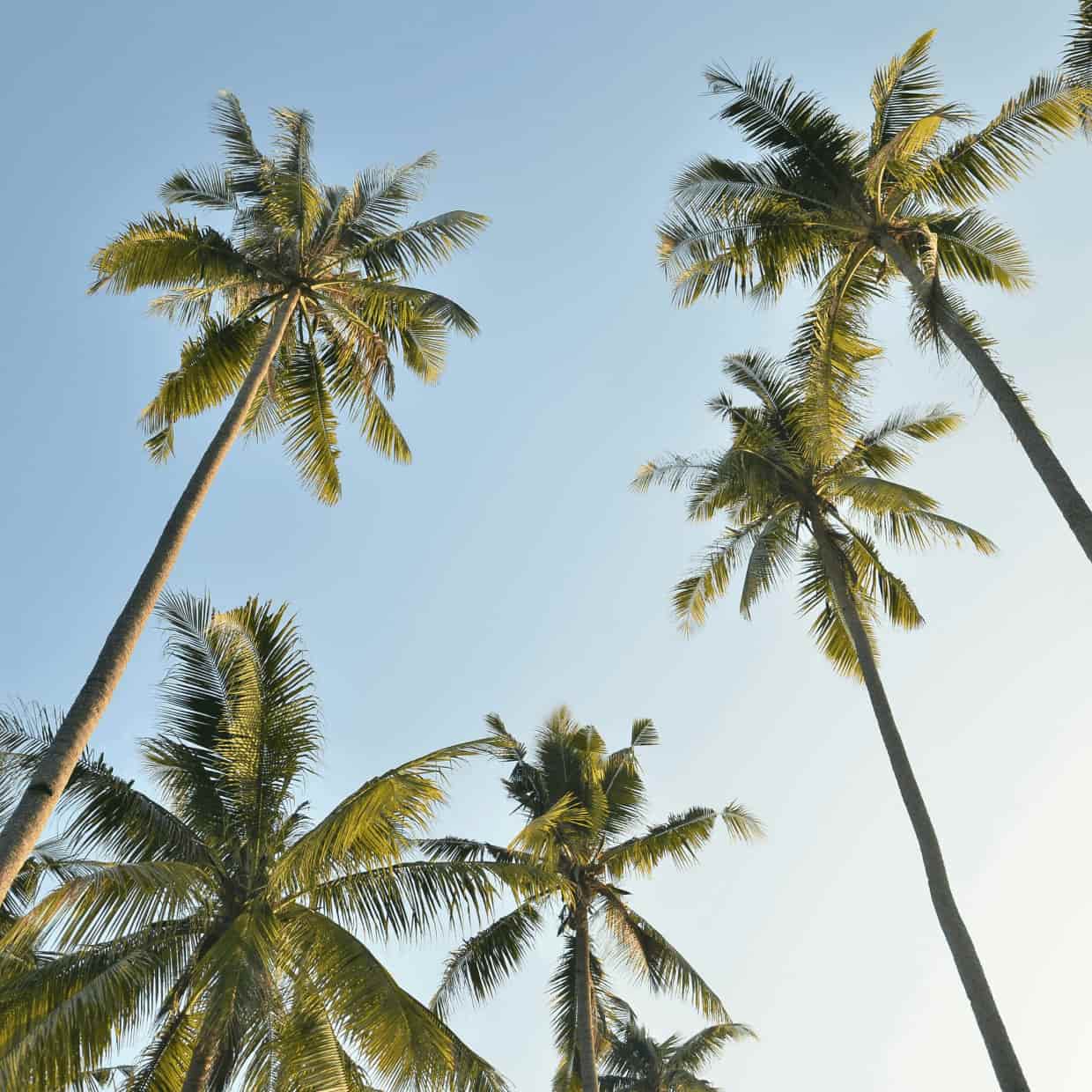 Before
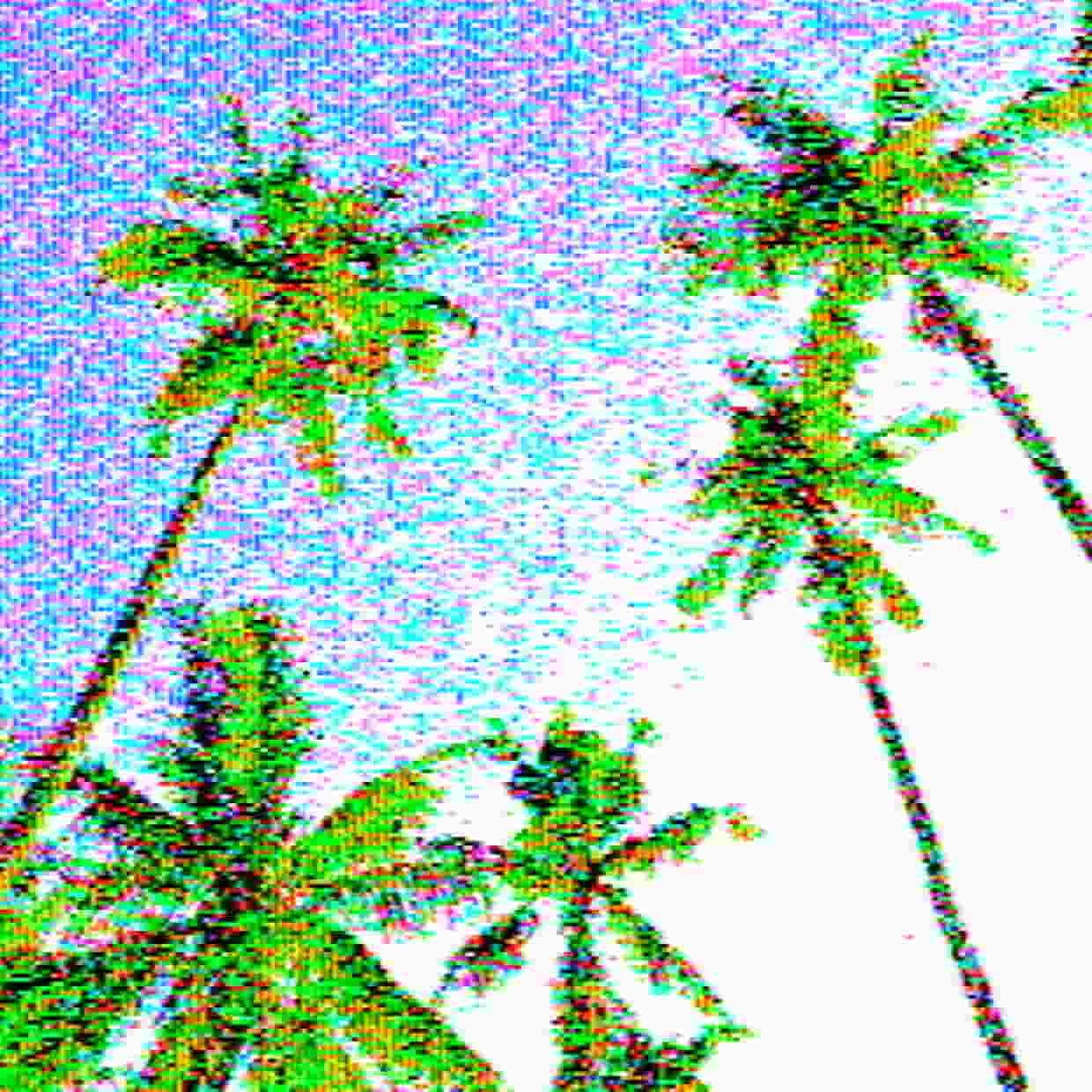 After
After
Ideas for using the effect
Early home-computer art
Rebuild the look of 1980s Apple II games and title screens: violet and green, blue and orange, and black and white, locked to the 280×192 grid.
Green-screen terminals
Switch to Hi-Res Mono and pick a phosphor color for the green or amber monitors that sat next to so many Apple IIs in schools and offices.
Double Hi-Res stills
Use the 560-dot mode for richer 16-color images, the way later Apple IIe and IIc software drew splash screens and paint-program art.
Retro motion and music videos
Apply it to footage for a locked 8-bit computer look that holds frame by frame, with optional scanlines for a CRT finish.
Made with this effect
More inspiration on Instagram @effect_app


Use Apple II in Photoshop, Figma or on your desktop
One account, the same effect everywhere.
In Photoshop
Apply it to a layer in Photoshop 2022 and later, on macOS or Windows. The plugin renders on your own GPU and hands the result back as pixels on a new layer.
get the Photoshop plugin →In Figma
Run it on images and frames without leaving the canvas. The Figma plugin is this same editor, pointed at whatever you have selected.
get the Figma plugin →On desktop
Install the macOS or Windows app when you want a window of its own, with your account and your presets already there.
download the desktop app →Frequently Asked Questions
What is the Apple II effect?
Apple II turns an image into Apple II graphics. It does not swap in a fixed palette. It encodes the picture into the Apple's 1-bit dot stream and decodes that as a composite NTSC signal, so the colors, fringes, and byte-boundary glitches come out of the signal the way they did on the hardware.
What is NTSC artifact color?
The Apple II had no real color hardware in Hi-Res. It sent a stream of on and off dots, and a color TV read patterns in that stream as color. Alternating dots look violet or green, and shifting them by half a dot gives blue or orange. That is artifact color, and it is why Apple II images have colored fringes on every edge.
What is the difference between Hi-Res, Hi-Res Mono, and Double Hi-Res?
Hi-Res is the classic 280×192 mode with six colors: black, white, violet, green, blue, and orange. Each group of 7 dots shares one palette, so colors clash where groups meet. Hi-Res Mono is the same signal on a monochrome monitor, with the half-dot shifts still visible. Double Hi-Res doubles the dots to 560 across and reaches 16 colors.
What does Color priority do?
Every dot is either on or off. Color priority sets how much the source color steers that choice, compared with brightness alone. At 0 it is a plain brightness dither. Higher values chase hue harder at the cost of more fringing.
What do Luma blur, Color bleed, Tint, and Saturation do?
They are the controls of the NTSC decoder in the monitor. Luma blur softens the picture. Color bleed sets how far color smears sideways, which is what turns dot patterns into solid areas of color. Tint and Saturation work like the knobs on an old TV.
What does 4:3 raster do?
By default the effect keeps your image's shape and fits the Apple's 280-dot width across it. Turn on 4:3 raster to squash the image into the real 280×192 screen, the way it would look on a period monitor.
How is this different from Dither or MacPaint?
Does Apple II work on videos?
Yes. It runs in real time on images and video, and the raster stays locked to the source, so the look is the same in preview and export.
Can I combine Apple II with other effects?
Yes. It pairs well with CRT Screen for a curved monitor, NTSC or VHS for a recorded-off-the-screen look, and MacPaint for an early-computer series.
Is there an Apple II effect for Photoshop?
Yes. The Photoshop plugin applies Apple II to a normal RGB layer in Photoshop.